A scheduled job is work the workspace’s own AI does on its own, at set times. When a run doesn’t finish, nobody is watching, so the Schedule page puts the job at the top in a box that says what happened and when it tries again:
Competitor pricing watch didn’t finish last night at 11 pm. It ran out of time. It tries again tonight at 11 pm on its own.
The box has two buttons. Ask the AI to fix it is the quickest way out. See what happened opens the job’s runs. The tile above it counts the jobs that need a look, so a quiet day reads 0.
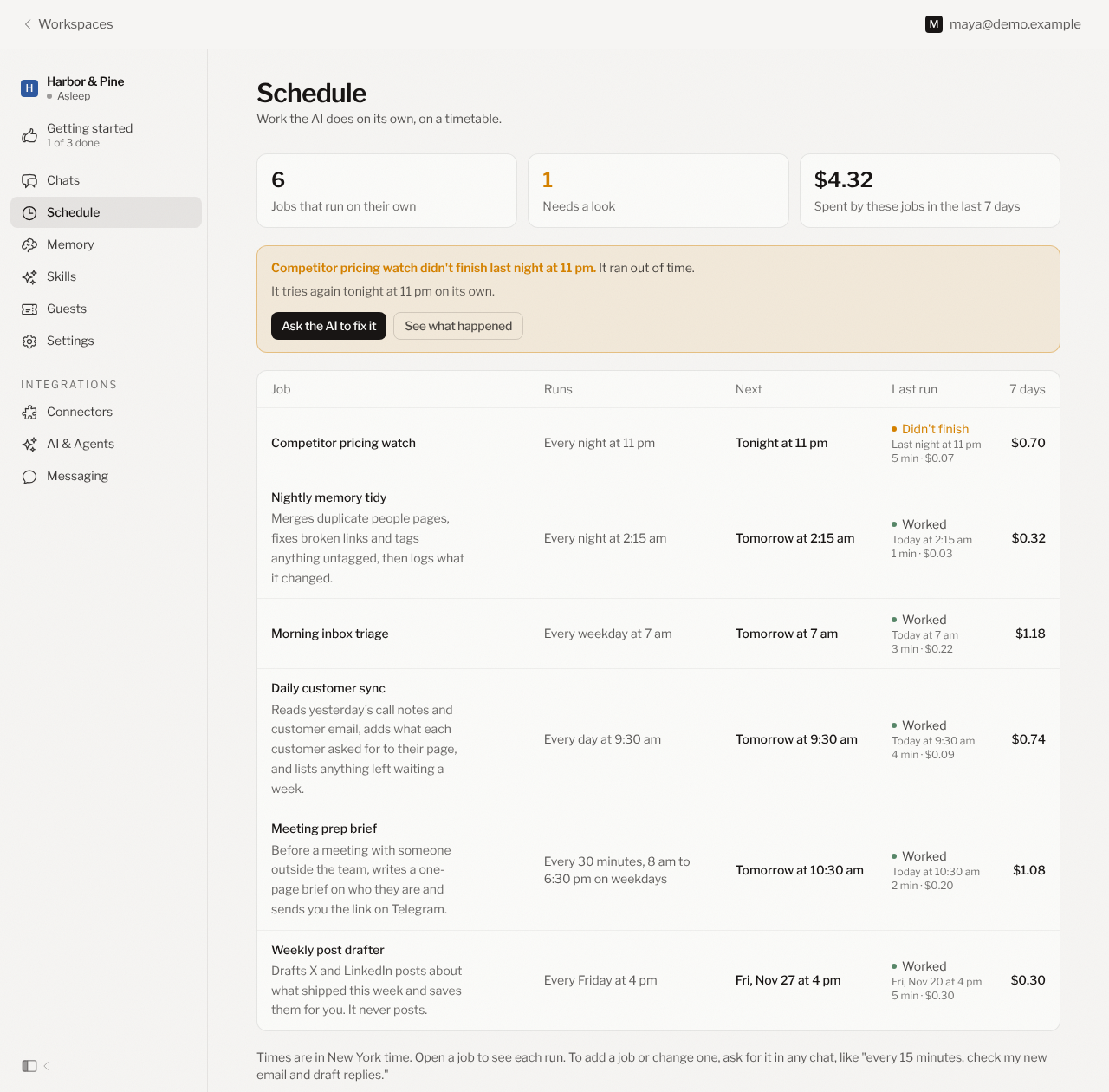
Ask the workspace’s AI to fix it
Ask the AI to fix it opens a new chat with the message already typed. It names the job, says when the run stopped and why, and asks the AI to read the job’s recent runs, find out what went wrong, change the job so it works next time, turn it back on if it was stopped, and say what it changed.
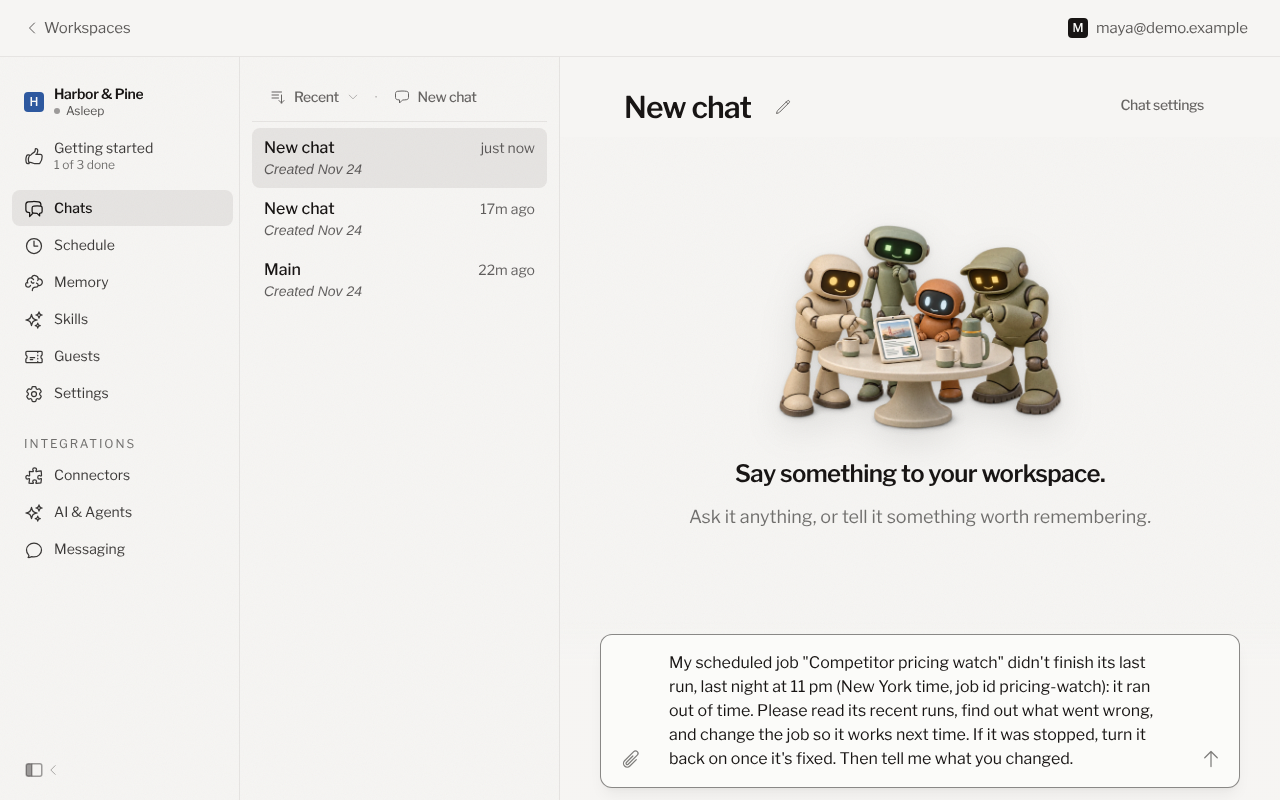
Nothing is sent until you press Send, so add what you know first: “the pricing page moved to a new address”, or “it only needs the first three sites”. The workspace’s own AI is the one that runs the job, so it can read every run, change the job’s instructions or its times, and turn a stopped job back on. The chat spends AI credit like any other.
Look at the runs yourself
See what happened, or a job’s last run in the table, opens the job’s page. It lists the recent runs, newest first, each with when it ran, whether it worked and what it cost. Open a run to see how long it took, how many steps it took and why it stopped.
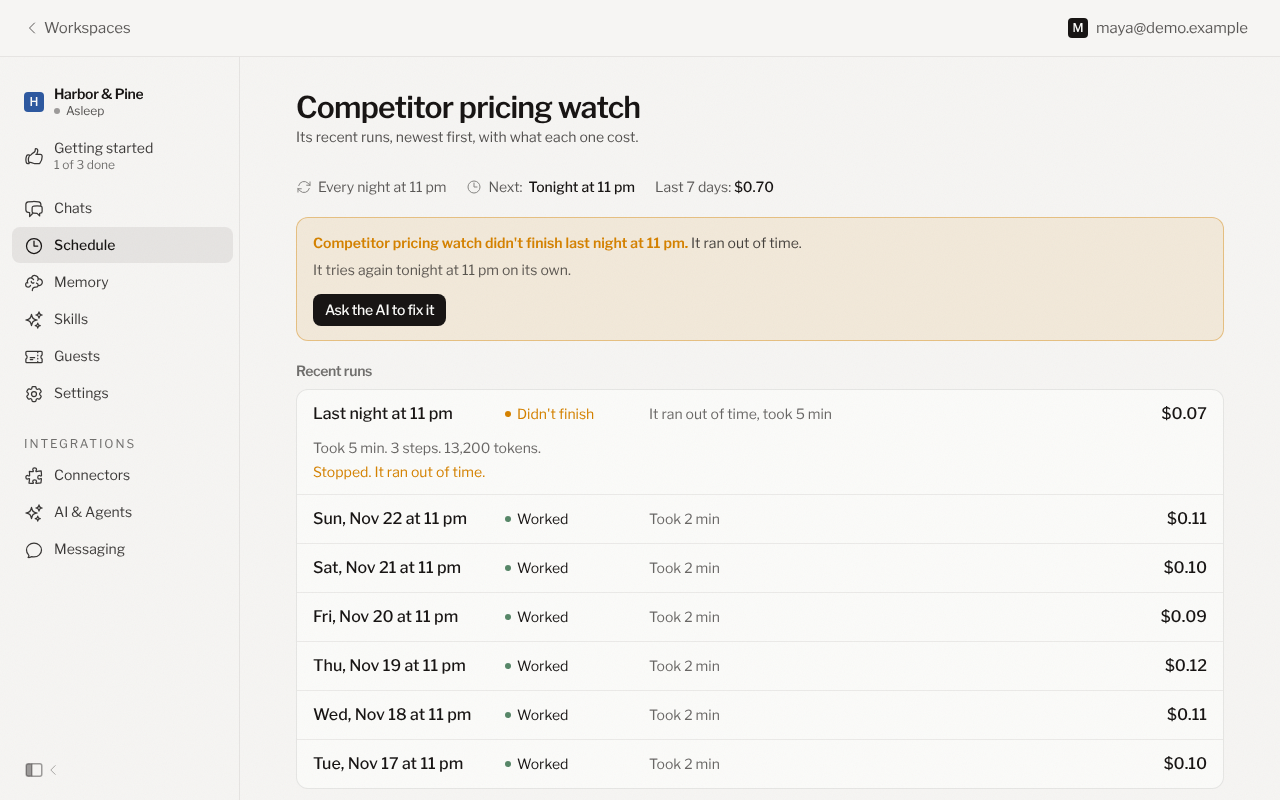
What a run says, and what to try:
| The run says | What to try |
|---|---|
| It ran out of time. | The run hit its time limit before it was done. Ask the AI to do less in each run, or to split the job in two. |
| It had too much to read at once. | Ask the AI to read less in each run, such as only what is new since the last one. |
| The workspace was out of credit. | Add AI credit. The job runs again at its next time. |
| The AI service was busy. | Nothing. It was the service, not the job, and the next run usually works. |
| The AI service turned the request down. or It stopped with an error. | Ask the AI to fix it. It can read the run’s steps and see where it stopped. |
| Did nothing, with the job at the top | Every action it tried was refused, usually because an account it needs is not connected or does not allow it. The box names what to fix. |
| Stopped, in the Next column | GBrain stopped the job after it kept failing, so it would not keep spending. Ask the AI to fix it, and it turns the job back on once it works. |
What the AI is told, folded at the bottom of the job’s page, shows the job’s instructions, word for word, and its timetable as the workspace stores it. A job that does the wrong thing, rather than failing, usually needs new instructions. Ask for them in a chat.
What a scheduled job costs explains the cost, the steps and the tokens on each run.
Have an AI you connected check it
An AI connected to the workspace, such as Claude or ChatGPT, or the gbrainio command, can check and change the schedule from outside. It needs the workspace’s Schedules permission: Read to look, Read & Write to change a job or run it now (What an AI can reach).
Ask the AI in its own words, for example: “In Harbor & Pine, which scheduled jobs failed last night, and what do they do?” It uses these commands:
| MCP name | Command line | What it does |
|---|---|---|
schedule_list | gbrainio schedule ls -w <id> | Lists every job: its name, its instructions, how often it runs, whether it is on, when it last ran, whether that run worked, and when it runs next. |
schedule_update | gbrainio schedule edit <job> -w <id> | Changes a job’s times, time zone, instructions, name or description. |
schedule_run | gbrainio schedule run <job> -w <id> | Runs a job now, to check a fix without waiting for its next time. |
schedule_remove | gbrainio schedule rm <job> -w <id> | Removes a job. |
From a terminal:
gbrainio schedule ls -w 7 # every job, and how its last run went gbrainio schedule edit 9b1f… -w 7 --message 'Check only the first three sites' gbrainio schedule run 9b1f… -w 7 # try the fix now
A connected AI sees whether the last run worked, but not the runs before it or why one stopped, and it cannot turn a stopped job back on. For those, open the job’s page, or ask the workspace’s own AI with Ask the AI to fix it.
Each change a connected AI makes is on the Activity page, under the connection that made it. The runs a job does later are the workspace’s own, so they are on the Schedule page, not under that AI.