An Obsidian vault is a folder of Markdown notes, so a workspace can take a copy of it with no export step. Each note becomes a page in Memory, the vault’s folders become folders there, and the workspace answers from the notes with the note it used.
The copy is a copy, not a connection. Nothing in the vault changes, and a note written in Obsidian afterwards stays in Obsidian until it is brought in too.

What comes across
- Every note, whole, as one page in Memory under Sources, in a folder named after the vault.
- The vault’s folders, as folders inside it. Daily notes come across like any other note, so a question about a day is answered from that day’s note.
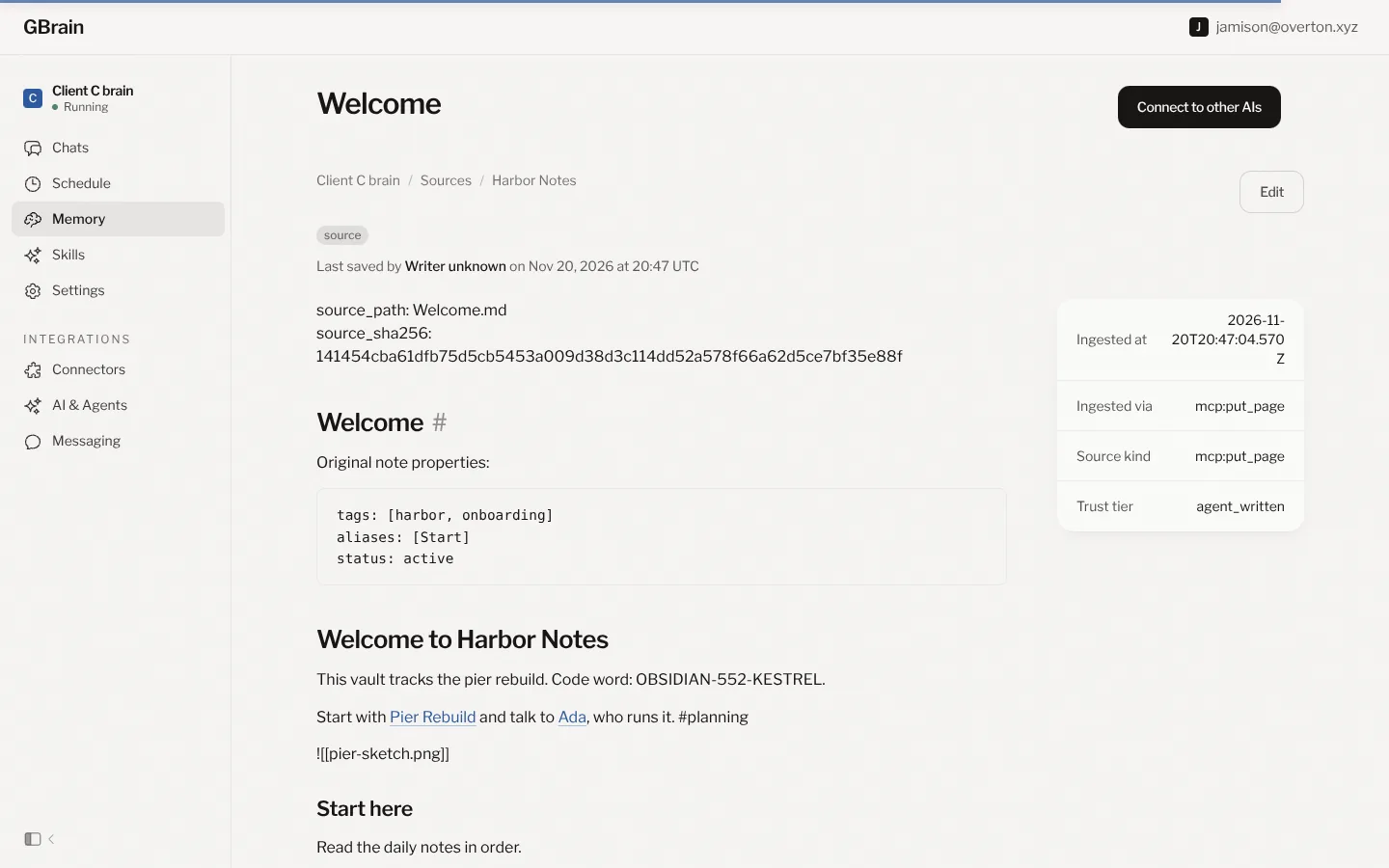
[[Links]]between notes, as links on the page, under the words the note gave them. The workspace’s AI reads them when it answers. Opening one from a note in Memory is the exception, below in Links between notes.- Properties, the block of fields at the top of a note, as text at the top of its page under “Original note properties”. Memory keeps their words, not its own tags or details for them.
#tags, as words in the note. Search finds them; Memory does not list the note under that tag.- Tasks, as checkboxes, ticked or not as they were.
- A canvas, as its text: the words on its cards and the notes it names, not the drawing.
Moving it in through a chat
A chat takes a file up to 100 MB. Notes are small, so most of a vault’s size is its pictures and attachments, which do not come across anyway. A vault over 100 MB fits once it is zipped without its attachments folder.
- Zip the vault folder. On a Mac, right-click the folder in Finder and choose Compress. On Windows, right-click it in File Explorer and choose Send to, then Compressed (zipped) folder.
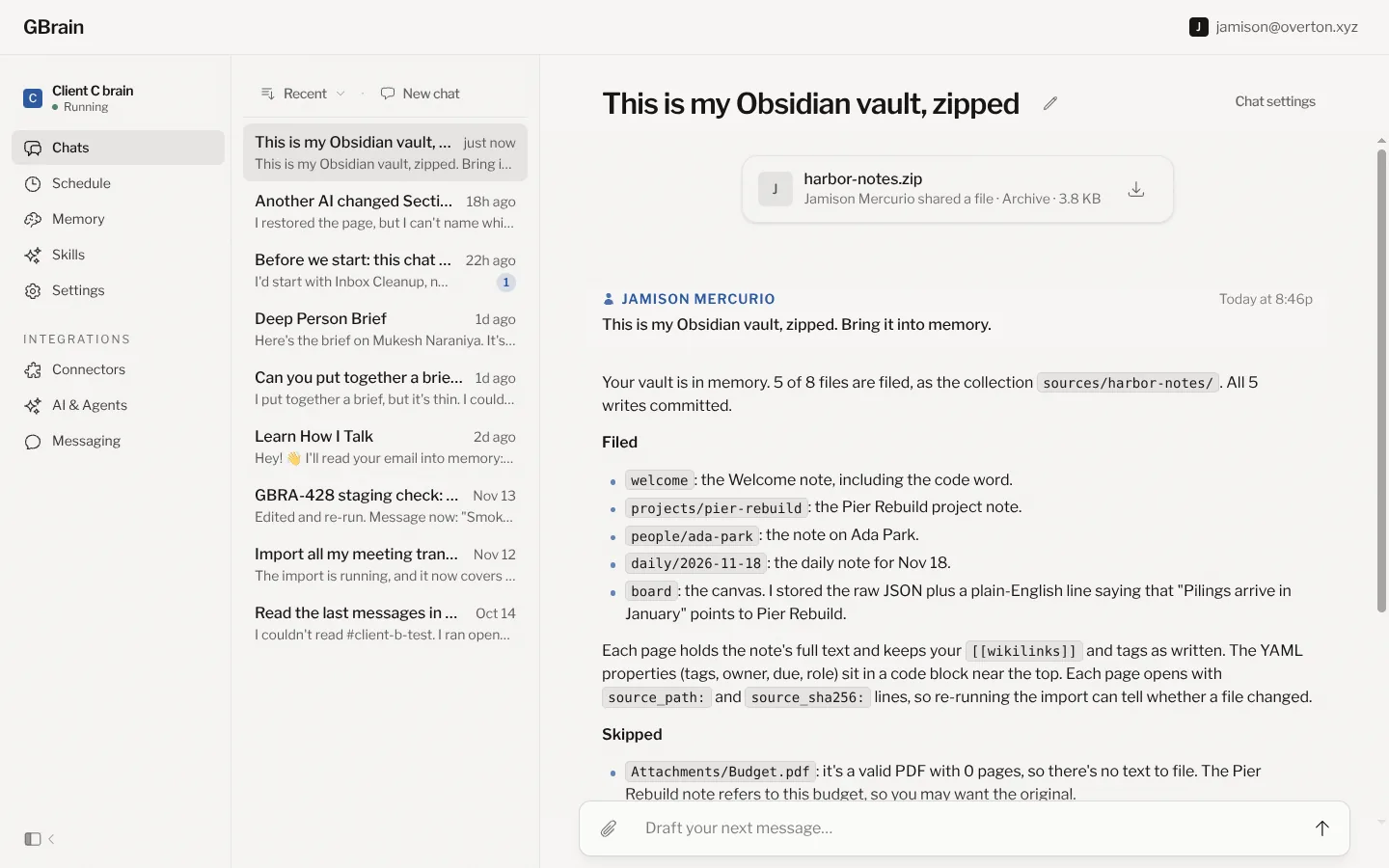
- Drop the zip into a chat in the workspace and say what it is: “This is my Obsidian vault, zipped. Bring it into memory.”
- Read the reply. The workspace unpacks the zip, files each note, and says what it filed, what it skipped and why. A small vault is in within a couple of minutes.
A zip larger than 100 MB, up to 2 GB, goes through Google Drive instead, with no terminal: put it in Drive, give the workspace Drive at Read on Connectors, and ask in a chat to fetch it by name and bring it in. Bring a folder of documents into memory has the steps.
Moving it in with Claude Code or Codex
Claude Code and Codex read a folder on the computer they run on, with no size limit, on their own plan rather than the workspace’s credit. This is the way for a very large vault, and for a vault that keeps growing: run it again later, and it files only the notes that are new or changed.
Follow Bring a folder of documents into memory: connect the AI to the workspace with Read & Write, and paste the prompt there with the vault’s folder as the folder and a short name for the collection, like harbor-notes. Add one line to the end of the prompt, “Skip the .obsidian folder”, so the vault’s settings are not read as notes. The notes arrive under Memory, then Sources, then the collection’s name, the same place a chat puts them.
Check it worked
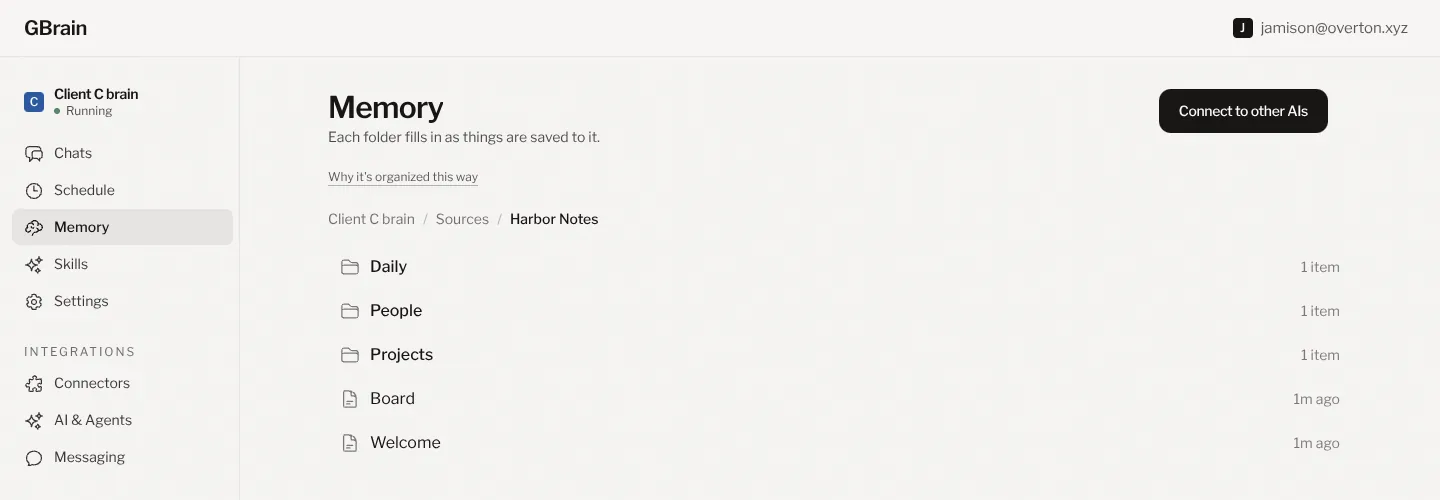
Open Memory, then Sources, then the vault’s name. The vault’s folders are there, and each note opens to its text.
Then ask the workspace about something only the vault would know, like a line from last week’s daily note. It answers from the notes and names the one it used.
Links between notes
A link comes across with its words, and Memory draws it as a link. Obsidian names the note a link leads to by its title, [[Pier Rebuild]], and Memory files that note under an address of its own inside the vault’s folder. So opening a link from a note in Memory today leads to a page that says it could not be read, where it should lead to the note. Open a linked note from its folder instead, or ask the workspace about it: its AI finds the note by the link’s words.
What stays behind
- Pictures and attachments. Memory holds text, so an image, a PDF or any other file in the vault is not copied. An embed,
![[sketch.png]], stays in the note as that line of text. A PDF with text in it can be dropped into a chat on its own, up to ten at a time. - Embedded notes.
![[Another note]]arrives as that line, not as the other note’s text. The other note comes across on its own page. - Callouts, as quotes, with Obsidian’s marker such as
[!note]left in as text. - What a plugin works out. A Dataview table, a Tasks query or a chart is drawn inside Obsidian, so the note keeps the query as written, not its result.
- The
.obsidianfolder: the vault’s settings, theme and plugins. It is left out. - A canvas’s layout. Its cards’ words come across; where they sit and how they are joined does not.
The copy in memory does not follow the vault on its own. When the vault has moved on and the difference matters, bring it in again with Claude Code or Codex, which files only what is new or changed.