
Most people we talk to don’t have just one job. They advise a couple of startups, sit on a board, do client work, and have a life on top of all that. Each of those is its own GBrain account, with its own workspaces, memory and tools, and they bounce between them all day.
So GBrain was built for that from day one. Sign in to as many accounts as you need, and they all stay signed in on the same browser.
Who this is for
- Anyone working with a few organizations at once. Advisors, board members, founders with a side project. Each organization gets its own account, and nothing from one bleeds into another.
- Anyone keeping work and personal apart. Personal stuff stays in a personal account, work stays in a work account, and you can still see both from one place.
- Consultants. Give each client an account of its own. Their memory and tools stay with them, and hopping to the next client takes two taps.
Every workspace shows up on one page
Open Workspaces and pick All workspaces, and you get every workspace from every account you’re signed in to, on one page. Each one says which organization it belongs to and which account it opens as, so a client’s workspace can sit right next to a personal one without getting mixed up.
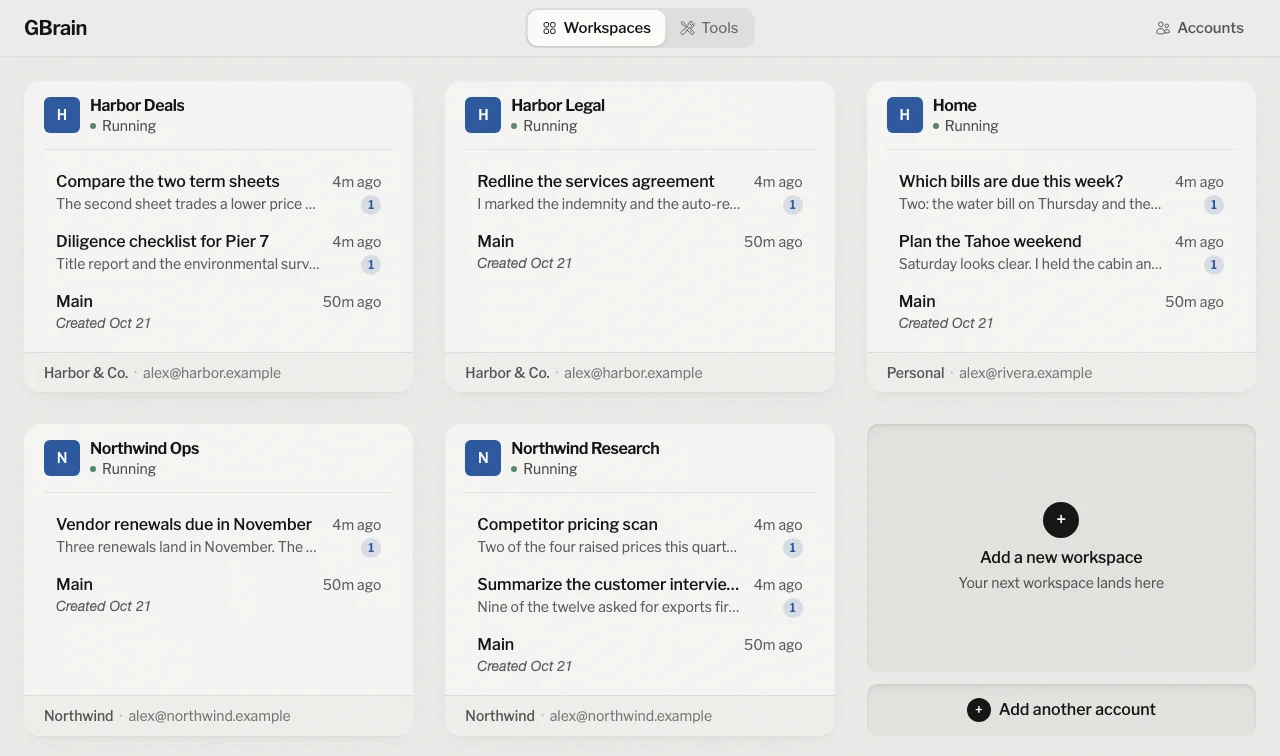
Switching takes two taps
Tap the account in the top right of any page, then tap the account you want. That’s it.
You also land on the page you were already on. Looking at one account’s Tools? You get the other account’s Tools. In the middle of a chat? You get the same chat. If the other account can’t see that page, GBrain says so and offers the accounts that can. Nothing gets signed out along the way.
Every tab can be a different account
The account is part of each page’s address, so one tab can have a client open while the next has a personal workspace, and switching in one tab doesn’t touch the others. Bookmarks remember the account too.
GBrain asks which account the same way everywhere
Open workspace on gbrain.io, connecting an AI, connecting a terminal and setting up a skill all need to know which account you mean. When more than one could be the one, GBrain shows the same short list and lets you pick. With one account, it doesn’t ask.
What you need to do
Nothing. To add another account, tap the account in the top right and choose Add another account.