When someone connects their email to a team workspace, HR and legal want to
know who else can now reach that mailbox. In GBrain, the person who connected
it decides, for each account and each workspace, and nobody else can loosen
that choice. This page is for whoever sets up a team workspace and explains
it to the team.
## Each person chooses who uses their account
**The problem.** One person connects their email to a team workspace, and
every AI in it can search that mailbox, pay and HR threads included. That
stops a team from connecting anything.
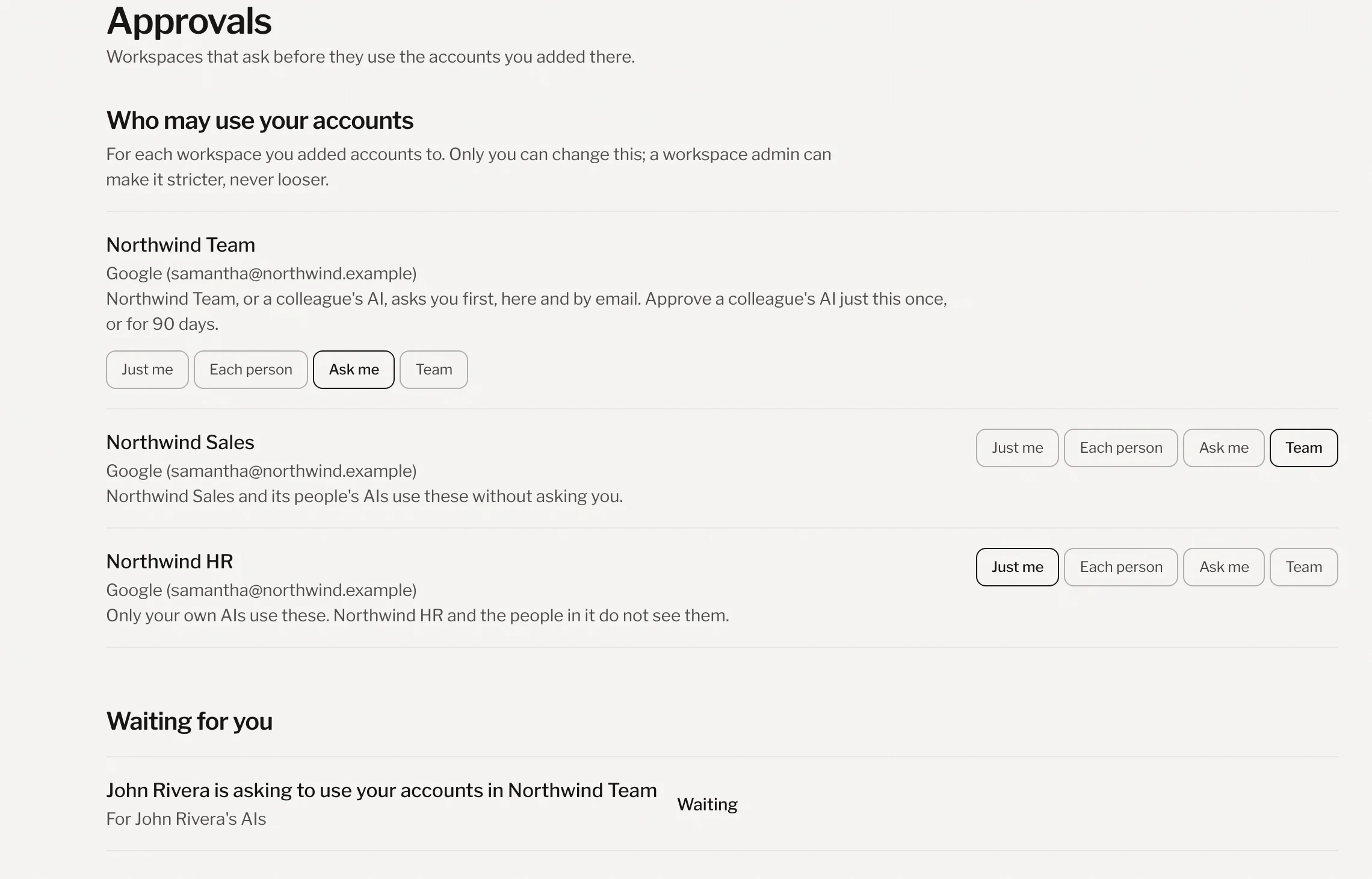
One account, a different answer in each workspace. Samantha's Google account asks first in the team workspace, is open to the sales workspace, and stays hers alone in the HR workspace. Every name here is made up.
Each account a person adds to a workspace gets one of four answers:
- **Just me.** Only their own AIs use it. The workspace and the people in it
don't see it.
- **Each person.** Nobody else uses it. A teammate's AI uses the teammate's
own account for that app instead, and sees only what the teammate could.
- **Ask me.** The workspace's AI, or a teammate's, asks first, by email and
on the Approvals page.
- **Team.** The workspace and its people use it without asking. Every
account starts here.
Only the owner changes this. An admin can set a whole workspace to ask first
(Settings, then Data protection, then Ask the owner), which makes every
account in it stricter and never looser.
## A teammate's AI asks first
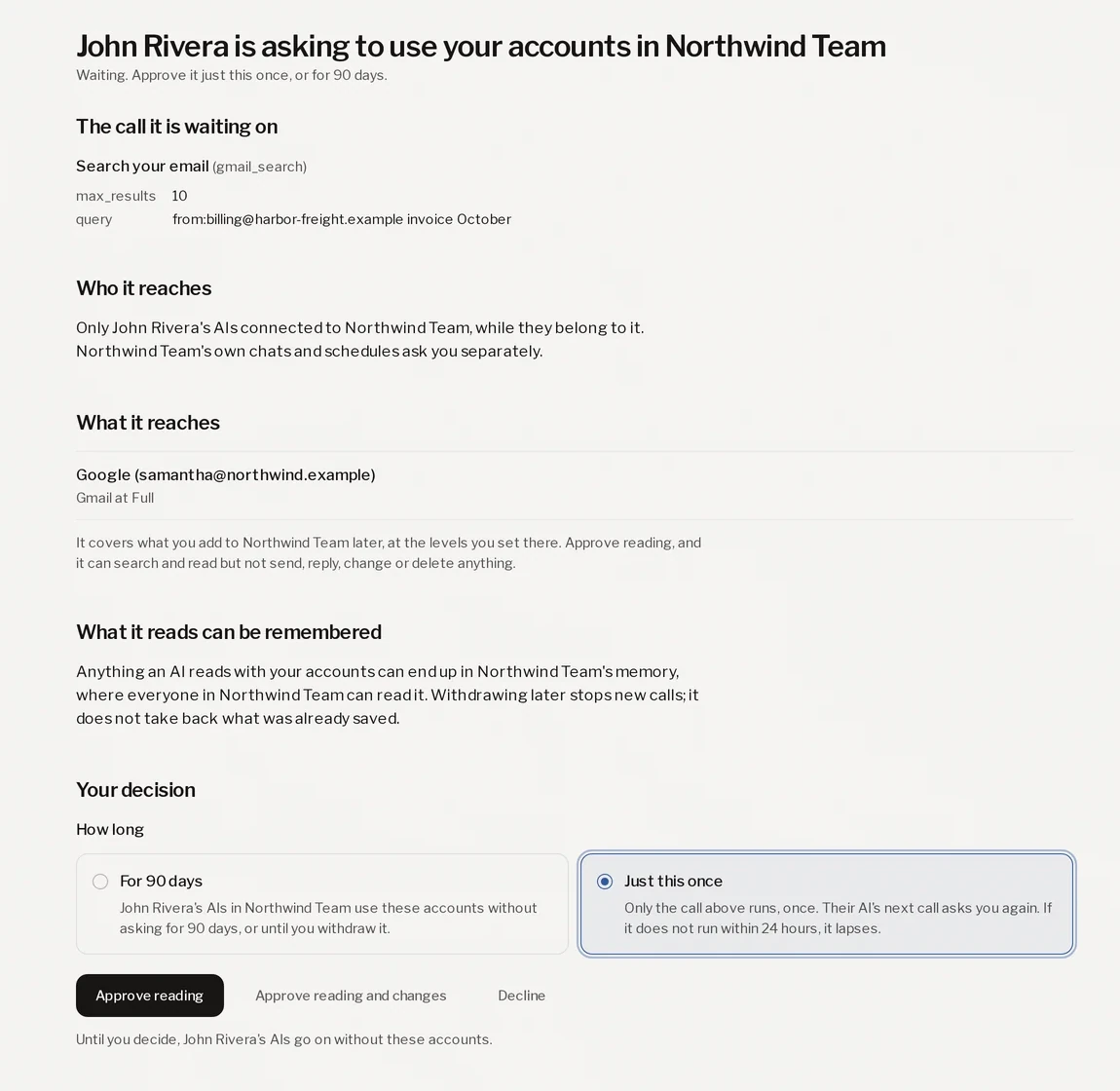
John's AI needs last month's invoice from a supplier, and the invoice is in
Samantha's email. Her account is on Ask me, so John's AI stops and Samantha
gets asked: a page with the exact search John's AI wants to run, and a
warning that what it reads can end up in the workspace's memory.
Just this once, for 90 days, or no. The page shows the exact call John's AI is waiting on before Samantha decides. Every name here is made up.
- **Just this once.** Only the call on the page runs, once. The next call
asks again, and an approval that isn't used within 24 hours lapses.
- **For 90 days.** That teammate's AIs use the account without asking for
90 days, or until the owner withdraws it.
- **Decline.** Their AI goes on without the account.
- **Reading, unless the owner says more.** Approve reading lets the AI search
and read. Sending, replying, changing or deleting takes Approve reading and
changes.
- **Each teammate asks for themselves.** A yes to John is not a yes to anyone
else. The workspace's own chats and schedules ask separately, for 90 days.
- **One link for all of it.** [gbrain.io/approvals](/approvals) shows what
is waiting and what was decided, and each approval has a Withdraw button.
Withdrawing stops new calls; it doesn't take back what was already saved.
## Team setup shows the whole team on one page
**The problem.** Whoever signs off on a team's setup had to open every
workspace, one at a time, to see who could read what.
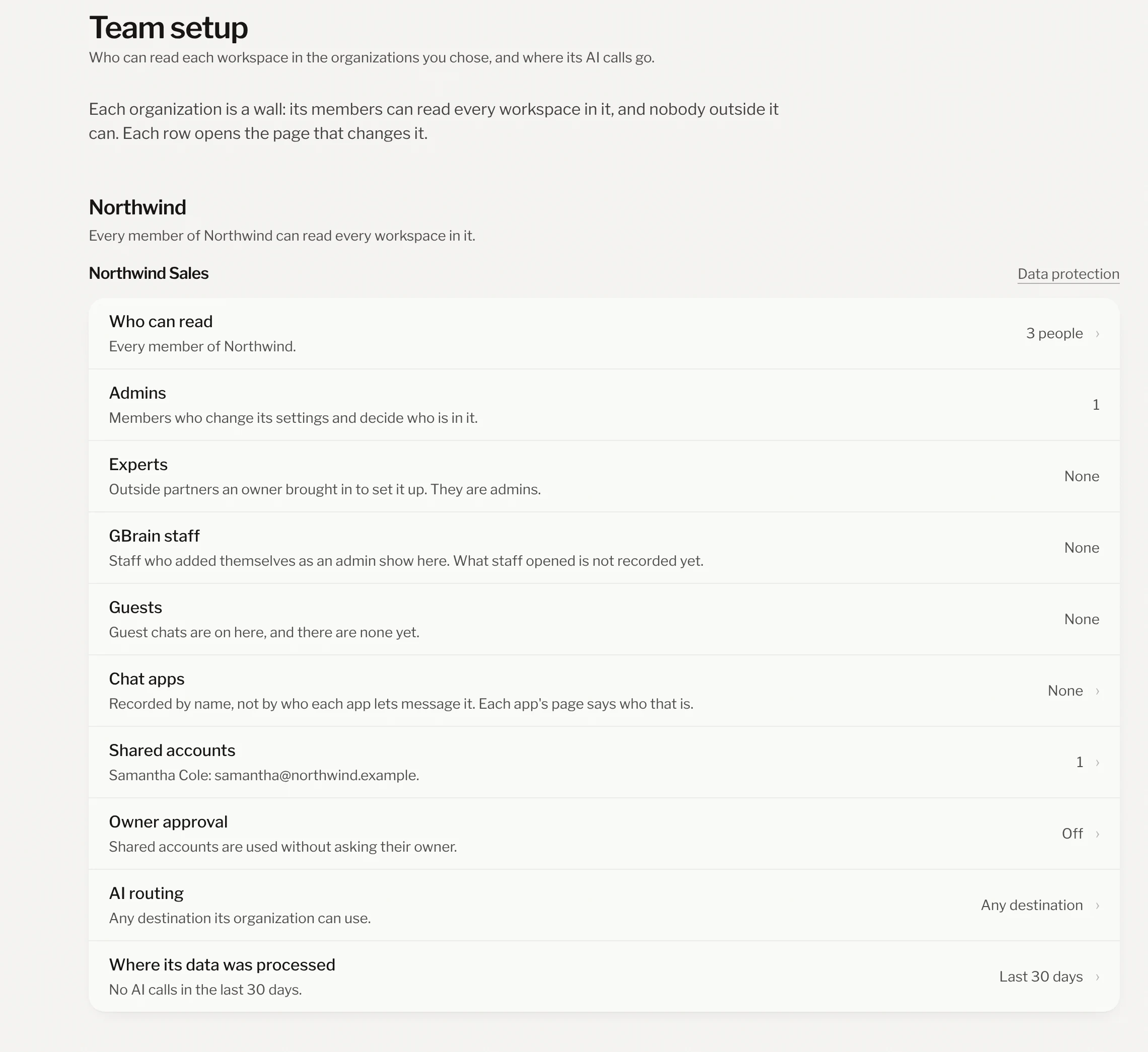
Every workspace the team runs, read in one place. Each row opens the page that changes it. Every name here is made up.
An admin opens Team setup from their account and adds the organizations that
belong together, such as the company and its HR team. For each workspace it
lists who can read it, who runs it, guests and chat apps, whose accounts are
shared there, whether it asks first, and where its AI calls went in the last
30 days. Every member of an organization can read every workspace in it, so
sensitive material belongs in
[its own organization](/docs/workspace/sensitive-teams).
When it looks right, press **Sign off**. GBrain keeps who signed, when, and
everything the page said. Afterwards the page shows either "Nothing on this
page has changed since" or each change as a sentence. A sign-off records what
the page said; it doesn't say the setup is complete.
## Set up a team workspace
1. Put HR, legal or board material in
[its own organization](/docs/workspace/sensitive-teams).
2. In each team workspace, open Settings, then Data protection, and set Owner
approval to Ask the owner.
3. Send the team [gbrain.io/approvals](/approvals) and have each person pick
an answer for each account.
4. Open Team setup, read each workspace, and sign off.
## What we're building out next
We're building out a record of who each chat app lets message a workspace,
and the workspace's own AI acting as the person who asked, next.