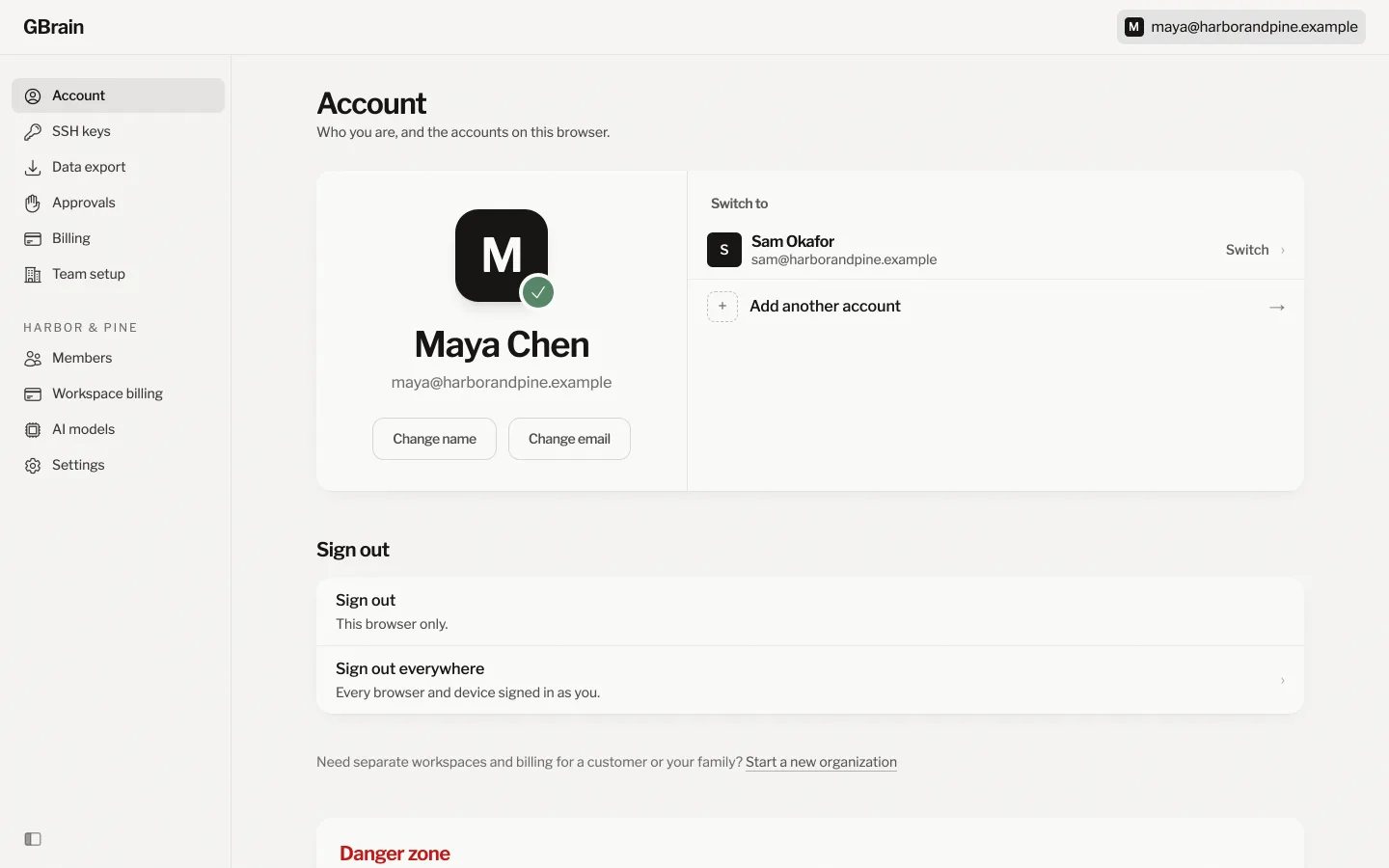
**The name at the top right always opens the account you are signed in as.** The page shows who
you are signed in as, with Change name and Change email. Beside it are the other
accounts signed in on this browser, and a way to add one. The account's own
pages, such as Billing and SSH keys, are in the sidebar.
A workspace's own settings are in that workspace, under **Settings** in its
sidebar.
Two accounts signed in. Switch opens the other account where it works: its workspace, or its list of workspaces when it has several.
## Switch opens the other account's workspace
Open the name at the top right, then press **Switch** beside the other account.
GBrain opens that account's workspace, or its list of workspaces when it has more
than one. Neither account is signed out, so you can switch back the same way.
## Adding an account keeps the first one signed in
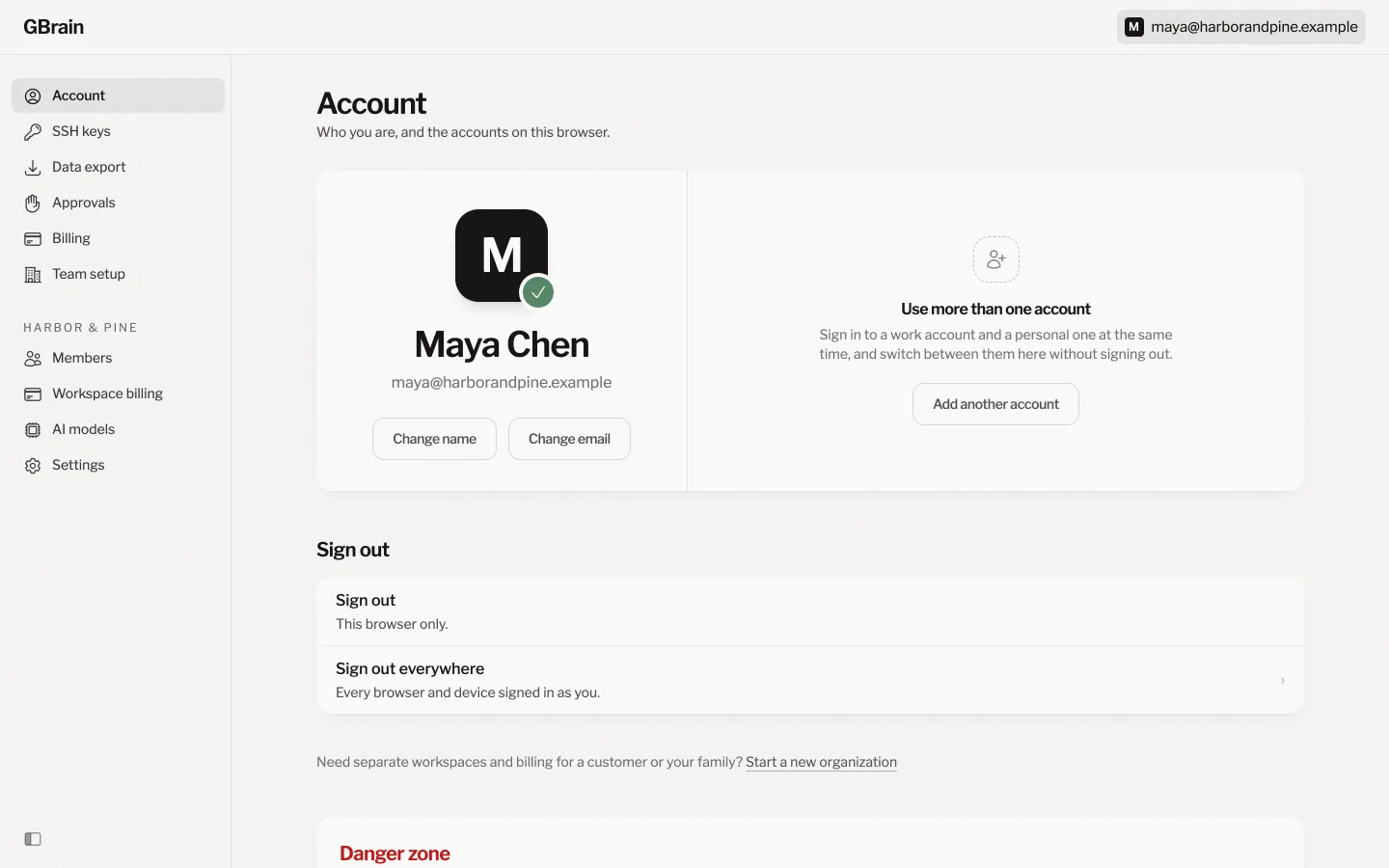
Press **Add another account** and sign in as the other person, with Google or an
emailed link. You come back to the account page with both accounts listed.
One account signed in. The panel beside the name is where the other accounts appear once you add one.
## Signing out affects one account
**Sign out** on an account's page signs out only that account, in this browser.
The other accounts stay signed in. **Sign out everywhere** signs that account out
of every browser and device.
## Several workspaces under one account need no second account
One account can belong to several workspaces and organizations. They are listed
on its **Workspaces** page. Add a second account only when you sign in with a
different email, such as a work address and a personal one. See
[A workspace for a family or company](/docs/workspace/family-or-company).