An AI you connect over MCP reaches one workspace. A terminal reaches as many as
you turn on, and the tools of your own that are in none of them: web search,
page reading and the accounts you connected for yourself. That makes it the
way to work across several brains at once, say for a team you set up and the
clients you set up for.
Everything a terminal does goes through the same rules as everything else in
GBrain: it reaches only what you turned on, every call is recorded, and keys
never leave our servers.
## Sign in from the browser
Install the `gbrainio` command, then:
```sh
gbrainio terminal login
```
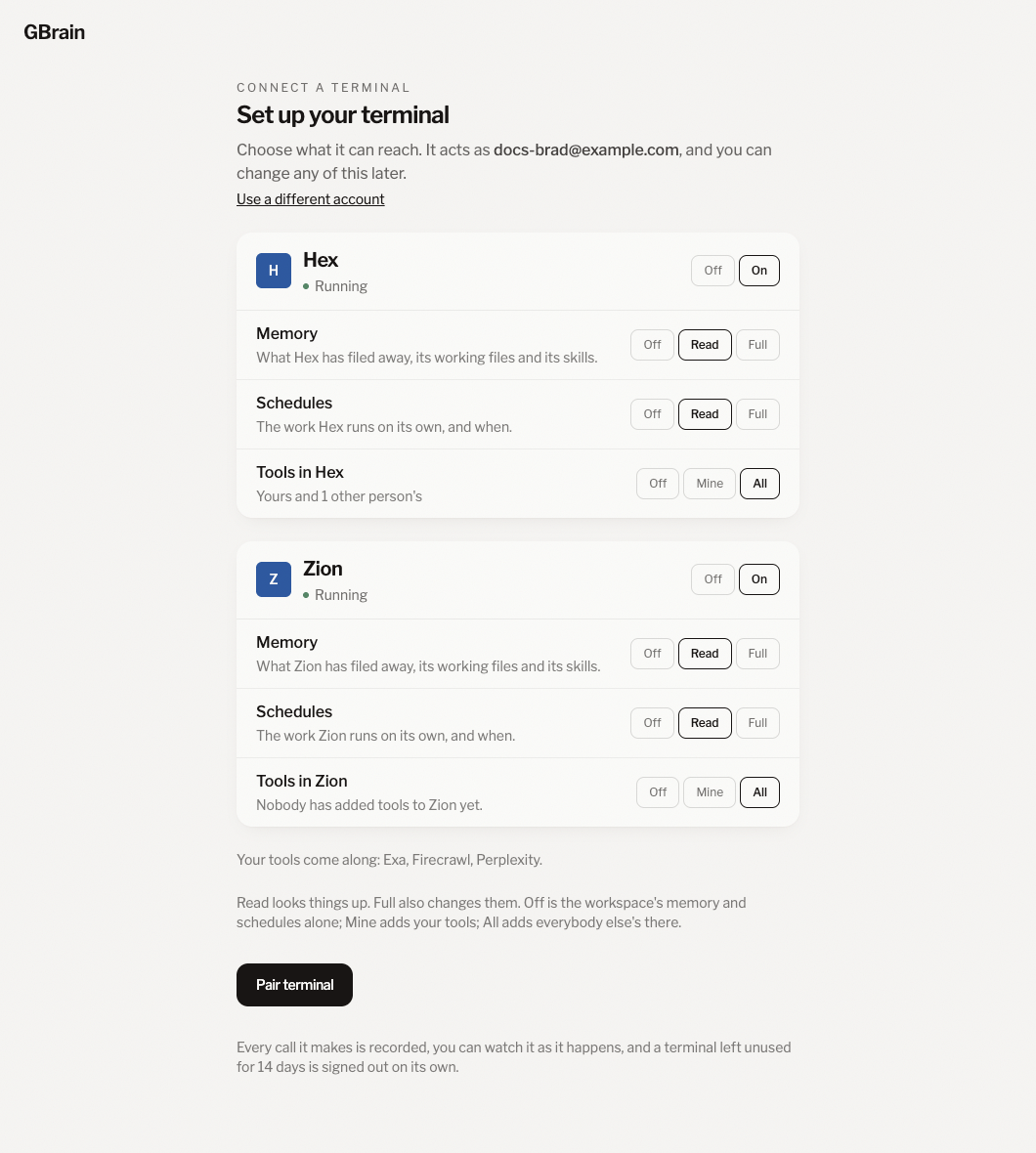
It prints a link and opens it. The page lists every workspace you belong to,
each on, with what the terminal may do in it. Switch off the ones it shouldn't
reach.
Each workspace is a card with three rungs. Memory and Schedules are Off, Read or Full. Tools are Off, Mine or All. Your own tools outside any workspace come along on their own.
Press **Pair terminal** and the page shows one command:
```sh
gbrainio terminal pair gbp_…
```
Run it in the terminal within ten minutes. It works once, and whoever runs it
is paired as you, so never share it. If the browser can't open on that machine
(a server over SSH, for example), paste the printed link into any browser and
bring the command back.
```gbrainio-screen pair
```
**Pairing reads back what the terminal reaches.** The number in the WORKSPACE column is the id `-w` takes. An email says the same thing, so you know a terminal was connected even if you weren't the one at the keyboard.
## What it reaches in each workspace
Each workspace's Tools rung decides what a tool command runs there:
| Tools | What a command can run in that workspace |
|---|---|
| **Off** | The workspace's memory and its schedules, nothing else. |
| **Mine** | That, and your own tools: the applications you added to the workspace and the ones you connected for yourself. |
| **All** | That, and everybody else's tools in the workspace. A colleague's tool runs as them, and the record names you as the one who asked. |
Memory and Schedules work the way they do for an AI: Read looks things up,
Full also changes them. [What an AI can reach](/docs/tools/what-an-ai-can-reach)
has the full table.
A terminal that reaches no workspace still runs your own tools.
## Naming a workspace, and whose copy
With one workspace on, no command has to name anything. With more than one,
every tool command names which, with `-w`. There is never a default among
several, so nothing runs in the wrong workspace by accident:
```gbrainio-screen several-workspaces
```
**Two or more workspaces, and the terminal asks which.** The refusal hands you the command that works.
`tool ls -w ` lists what that workspace lets the terminal run, grouped by
whose it is:
```gbrainio-screen tool-ls-team
```
**Your tools, then each colleague's.** At All, a colleague's tools are listed under their name with the `-c` that runs their copy.
When two people's copies of one tool are both there, Gmail for example, a call
stops and lists them, and `-c ` says whose runs:
```gbrainio-screen whose-copy
```
**Two copies, and the terminal asks whose.** Your own copy on the terminal and your copy in the workspace are one copy. Two accounts of your own are `-a`, the account, not `-c`.
`gbrainio workspace show -w ` lists the tools in a workspace with the
client id `-c` takes for each and whose it is.
## Reading it back, and changing it
```sh
gbrainio terminal show # who it acts as, and everything it reaches
gbrainio terminal show --format json # the same, for an assistant to read
gbrainio terminal open # the page that changes what it reaches
gbrainio terminal logout # turn this terminal off
```
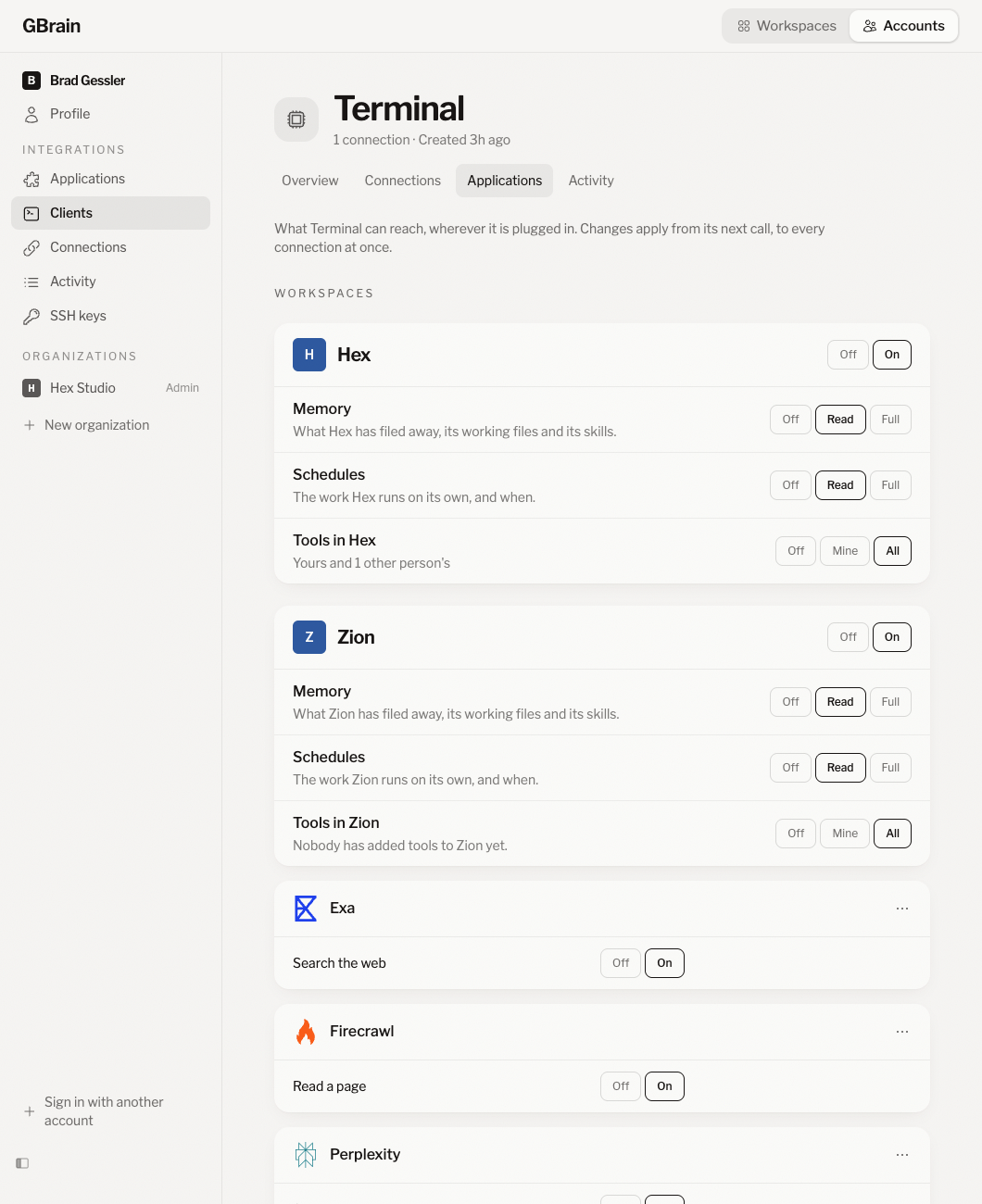
`terminal show` only reads. Changing anything happens on the terminal's page,
under **Clients** in your account, which `terminal open` opens: turn a
workspace on or off for it, move a rung, or end it. A change applies from the
terminal's next command. Turning a workspace off ends any shell the terminal
had open there.
The same cards as the setup page. Each press changes the one card you pressed.
A terminal lasts 30 days unless you give it more time on its page. One that
goes 14 days unused is turned off on its own. Pairing a second terminal on the
same computer turns the first one off.
## When it says no
| What it prints | What happened | Exit |
|---|---|---|
| This terminal isn't paired | It was never paired here, or it was signed out. Run `gbrainio terminal login`. | 4 |
| This terminal's term is over | Give it more time on its page, or pair again. | 4 |
| This terminal is switched off | Turn it back on from its page. | 4 |
| This terminal reaches N workspaces. Name one with -w | Add `-w` and the id. | 2 |
| … is on 2 clients here. Name one with -c | Two people's copies; add `-c` and the id. | 2 |
| No tool named … | Nothing by that name is on the terminal or in the workspace. `gbrainio tool ls` lists what is. | 2 |
| … is not on this terminal | It exists, and this terminal wasn't given it. Turn it on from the terminal's page. | 4 |
Exit 2 is a mistake in the command, 3 is something that doesn't exist, and 4 is
something this terminal may not do. Every refusal ends with the command that
fixes it, and refusals go to stderr, so `gbrainio … | jq` or `| tar` never
swallows one.
## For an assistant in the terminal
An assistant running in the terminal can read what it may do without asking
you:
```sh
gbrainio terminal show --format json
```
```json
{
"person": {"name": "Brad Gessler", "email": "brad@example.com"},
"terminal": {"name": "Terminal", "expires_at": "2026-11-04T18:40:00Z"},
"workspaces": [
{"id": 7, "name": "Hex",
"memory": "read", "schedules": "read", "tools": "all", "shell": false}
],
"applications": [
{"application": "Exa", "account": null, "levels": {"search": "on"}}
],
"url": "https://gbrain.io/users/7/clients/34/permissions"
}
```
A workspace's `id` is what `-w` takes and `tools` is its Tools rung.
`workspace show` and `tool show` print a workspace and its applications with
the same keys. The keys are a contract: they are added to, never renamed. It
can't change any of it; `terminal open` hands the page to you.
## Every command
Three levels, each showing what is under it:
```sh
gbrainio tool ls -w 7 # the tools this terminal can run in a workspace
gbrainio tool show -w 7 # what is hooked up there, and how to use it
gbrainio tool help gmail # one tool's commands
gbrainio tool gmail message search -h # one command's arguments
gbrainio tool add # the page where a tool is connected
```
Then call one:
```sh
gbrainio tool exa search "planning agendas"
gbrainio tool firecrawl scrape https://example.com
gbrainio tool perplexity research "what has the SF planning commission approved this year"
gbrainio tool gmail message search "invoices from June" -w 7
gbrainio tool gdrive file search "board deck" -w 7
gbrainio activity ls # your recent calls
gbrainio activity show 52 # one call in full
gbrainio workspace ls # your workspaces and their ids
gbrainio workspace show -w 7 # one workspace: its facts, its tools and whose
```
Anything ending in `open` prints the address first and then opens your
browser, so it also works on a machine with no browser.
Every argument a tool takes is also a flag, so you can say what you want one
piece at a time:
```sh
gbrainio tool gmail message search --from billing@stripe.com --newer-than 7d --unread -w 7
gbrainio tool gmail draft new --to jenny@example.com --subject "Tuesday" --body "Works for me." -w 7
gbrainio tool gcal event ls --query standup -w 7
gbrainio tool gdrive file export -f pdf -o ~/Desktop/deck.pdf -w 7
```
`-o` saves a file as it arrives, a piece at a time, so a large export starts
writing at once; `-o -` streams it to stdout.
These work the same way on every command:
```
-w, --workspace which workspace, when the terminal reaches several
-c, --client whose copy, when several people share one tool
-a, --account one of several connected addresses
-f, --format json|text|eml readable text on a terminal, JSON when piped
-d, --dry-run what a call would do, without running it
-h, --help what this command takes
-- the end of the flags: what follows is text
```
A flag a command doesn't take is an error that lists the ones it does, so a
mistyped flag never ends up inside a search. The email, calendar and Drive
commands in full are on [Tools, from anywhere](/docs/tools).